> For the complete documentation index, see [llms.txt](https://gitbook.salvo.games/llms.txt). Markdown versions of documentation pages are available by appending `.md` to page URLs; this page is available as [Markdown](https://gitbook.salvo.games/user-manual.md).

# User Manual

## Listing & Purchasing Tutorial

### Connecting Wallets

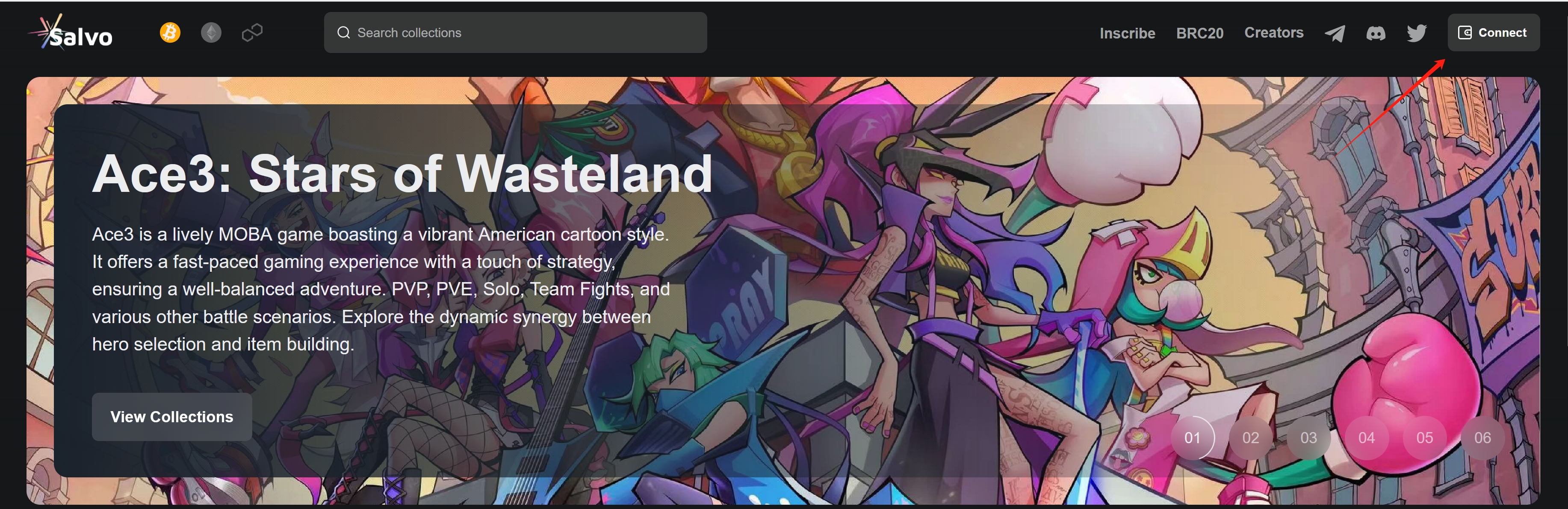
1. First visit market.salvo.games, then select the BTC icon on the top-left navigation bar, and finally click the Connect Wallet button on the top right corner.

<figure><img src="https://1290283104-files.gitbook.io/~/files/v0/b/gitbook-x-prod.appspot.com/o/spaces%2FtqhvE1g1K8RPy6RhNxn4%2Fuploads%2FdOfwtq0hxmUpXrG017hD%2F2_1.png?alt=media&amp;token=06f996c1-1b27-46ff-b91e-5b5682cff3f9" alt=""><figcaption></figcaption></figure>

2. salvo.games now supports *Unisat* and *Xverse* as wallets for BTC transacting, select the wallet of your choice.

<img src="https://3875926390-files.gitbook.io/~/files/v0/b/gitbook-x-prod.appspot.com/o/spaces%2FLyEQaCmk29cdobYcigo4%2Fuploads%2F3Ib1aaFwsln90EPeRANL%2Fimage.png?alt=media&#x26;token=84fbb693-a59f-4a4e-842b-a97caa7b1f6a" alt="" width="341">

3. If this prompt appears on the right side of the web, your wallet has been connected.

<img src="https://3875926390-files.gitbook.io/~/files/v0/b/gitbook-x-prod.appspot.com/o/spaces%2FLyEQaCmk29cdobYcigo4%2Fuploads%2FNURd7k6FQo8F3RhC2Nvu%2Fimage.png?alt=media&#x26;token=d019e831-1abb-4060-aba0-767ee959a701" alt="" width="275">

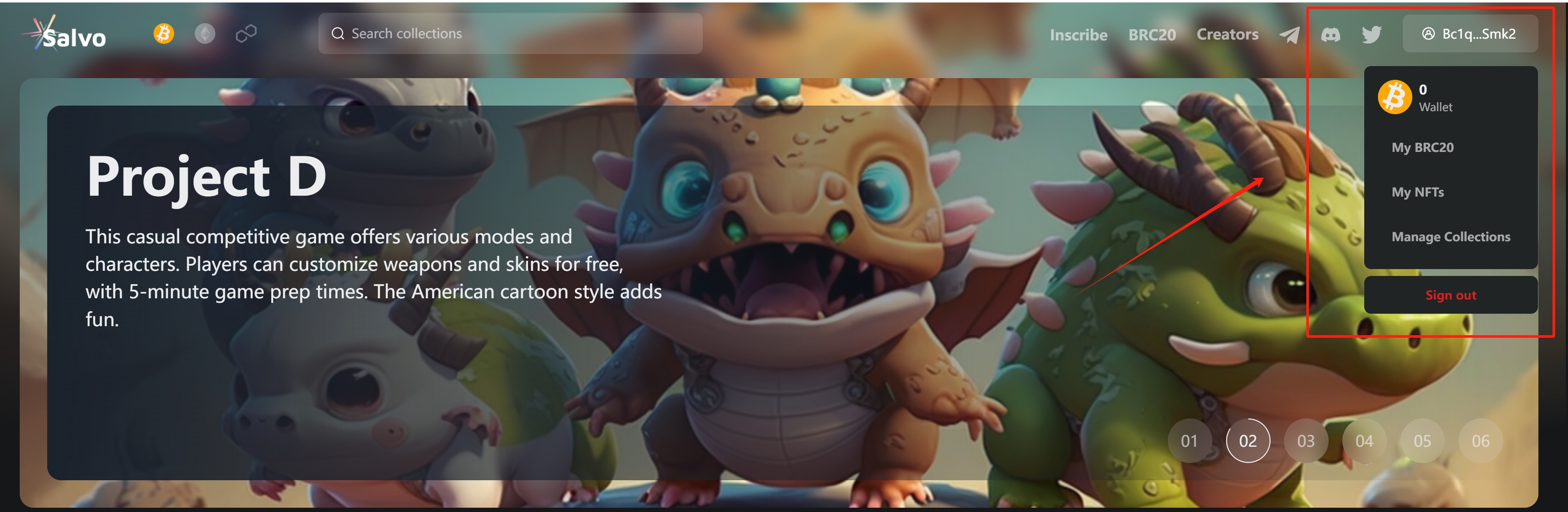
4. When your wallet is completed, you can click the button showing your wallet address on the top-right corner to reveal more wallet options:

<figure><img src="https://1290283104-files.gitbook.io/~/files/v0/b/gitbook-x-prod.appspot.com/o/spaces%2FtqhvE1g1K8RPy6RhNxn4%2Fuploads%2FLQqQI44MoFShkFw9P3oZ%2F2_2.png?alt=media&amp;token=f2ff4e31-0243-4819-91a5-10870034d821" alt=""><figcaption></figcaption></figure>

* A display of your wallet balance;
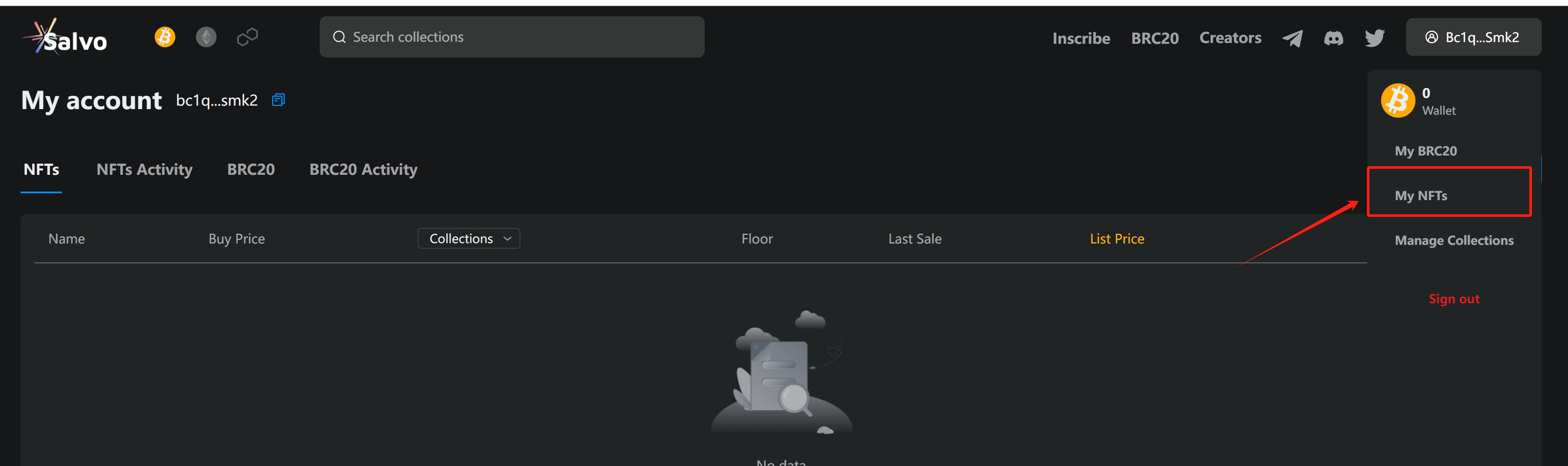
* My NFTs: Directs you to *My Account* page and shows the NFTs you hold;
* Sign out: Signs out of your wallet.

### Listing Inscritions

1. Select *My NFTs* from your wallet options to display all the inscriptions owned by this address. Select *List* to enter the *List for Sale* option.

<figure><img src="https://1290283104-files.gitbook.io/~/files/v0/b/gitbook-x-prod.appspot.com/o/spaces%2FtqhvE1g1K8RPy6RhNxn4%2Fuploads%2Flqluh7D5C9NU1nzIz9IS%2F2_3.png?alt=media&amp;token=8d8cf085-9a12-4d57-995e-dd1d9724f7c9" alt=""><figcaption></figcaption></figure>

2. Enter your *Sale Price* in the *List for Sale* window (price must be more than 0.0001 BTC, otherwise the *Confirm* button would be greyed out); the Confirm button will be clickable when everything is set up correctly; A USD value of your Sale Price will be automatically calculated and displayed, click *Confirm* when you're satisfied with everything.
3. Click *Confirm* to trigger the *Sign Transaction* window; when you're satisfied with the price, click *Sign* to confirm to complete the listing action.

<img src="https://3875926390-files.gitbook.io/~/files/v0/b/gitbook-x-prod.appspot.com/o/spaces%2FLyEQaCmk29cdobYcigo4%2Fuploads%2FMPGy8lsrdoFW72riGPwg%2Fimage.png?alt=media&#x26;token=0e0dc66f-8d2b-4135-a4d4-eed9910b0f5d" alt="" width="184">

<img src="https://3875926390-files.gitbook.io/~/files/v0/b/gitbook-x-prod.appspot.com/o/spaces%2FLyEQaCmk29cdobYcigo4%2Fuploads%2F5Yj39Vz9Chn2mQrrrNAA%2Fimage.png?alt=media&#x26;token=fca09a73-8ac1-492e-aabf-ab672b1e1ed2" alt="" width="188">

4. If this prompt appears, your listing has been completed.

<img src="https://3875926390-files.gitbook.io/~/files/v0/b/gitbook-x-prod.appspot.com/o/spaces%2FLyEQaCmk29cdobYcigo4%2Fuploads%2F6ks1uhqF5lSIVNEzSQyi%2Fimage.png?alt=media&#x26;token=d0a8a0b3-b17c-4f96-a9a6-5acc39472c85" alt="" width="183">

### Canceling Listing

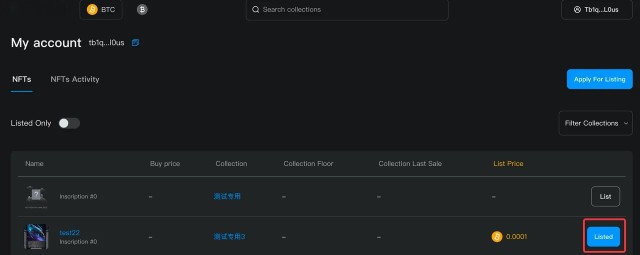
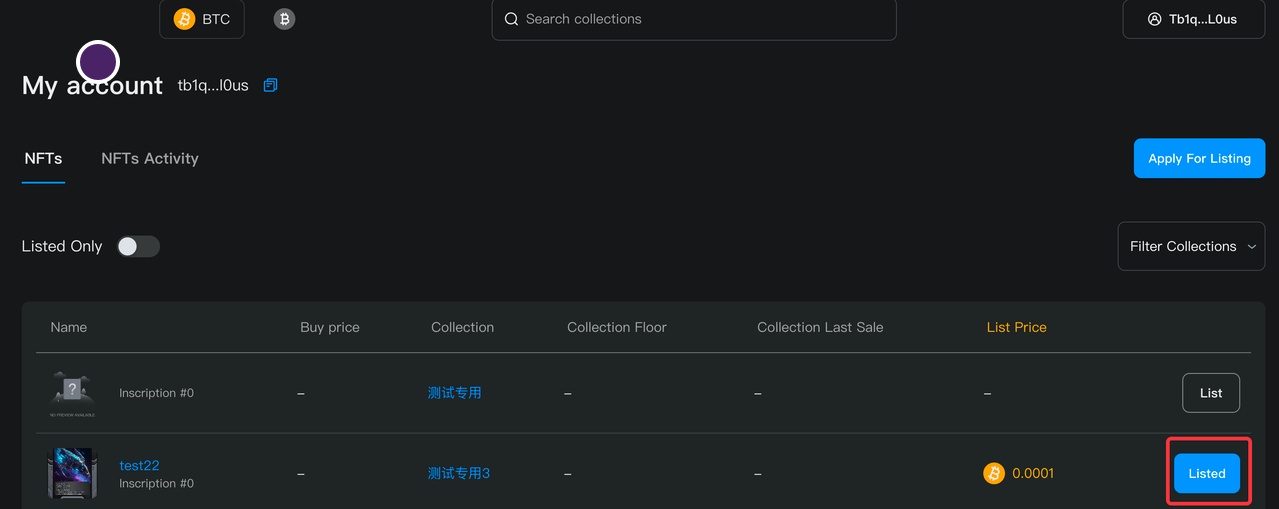
1. Select *My NFTs* from your wallet options to display all the inscriptions owned by this address. Select *Listed* to enter the *Change Listing* option.

<figure><img src="https://1290283104-files.gitbook.io/~/files/v0/b/gitbook-x-prod.appspot.com/o/spaces%2FtqhvE1g1K8RPy6RhNxn4%2Fuploads%2FUoAV3tMWP9woc5FU6Iin%2F2_5.png?alt=media&amp;token=7cfe6322-0ac9-453a-b7af-2bcfe0eaeb52" alt=""><figcaption></figcaption></figure>

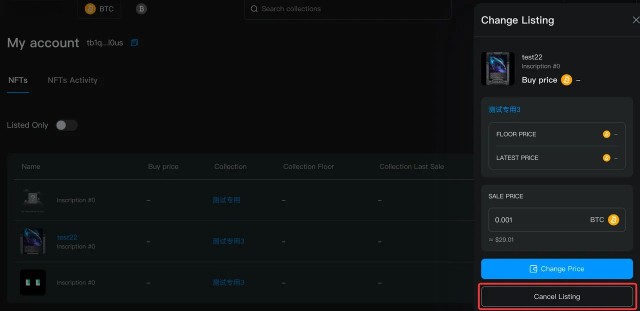
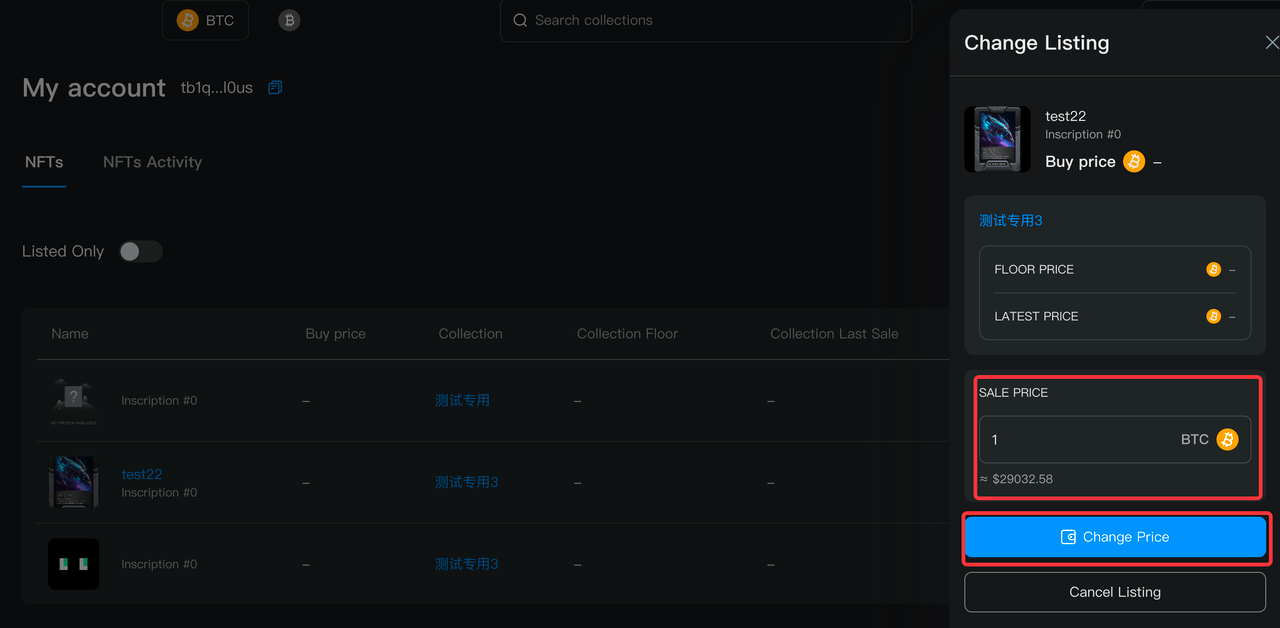
2. Click *Cancel Listing* in the *Change Listing* window.

<figure><img src="https://1290283104-files.gitbook.io/~/files/v0/b/gitbook-x-prod.appspot.com/o/spaces%2FtqhvE1g1K8RPy6RhNxn4%2Fuploads%2FSs3icHQMWRNQvb6xJmUm%2F2_6.png?alt=media&amp;token=a0d1c170-468b-4876-abbd-680dd1d04101" alt=""><figcaption></figcaption></figure>

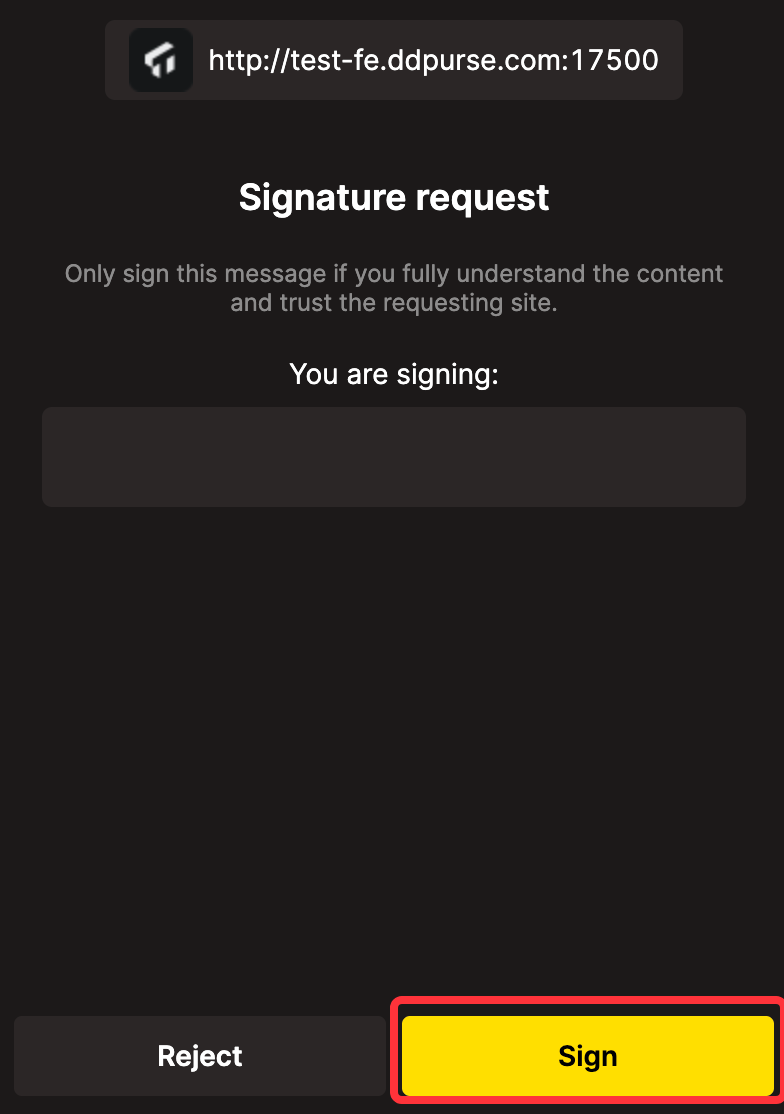
3. Click *Confirm* to trigger the *Signature request* window; click *Sign* to confirm to cancel the listing.

<div data-full-width="false"><figure><img src="https://1290283104-files.gitbook.io/~/files/v0/b/gitbook-x-prod.appspot.com/o/spaces%2FtqhvE1g1K8RPy6RhNxn4%2Fuploads%2FHNBg7HJRg3yx5wi3blAy%2F2_8.webp?alt=media&amp;token=1f519005-ad99-4ce3-bcf9-d4ebd778333e" alt="" width="188"><figcaption></figcaption></figure></div>

3. If this prompt appears, your listing has been canceled.

<img src="https://3875926390-files.gitbook.io/~/files/v0/b/gitbook-x-prod.appspot.com/o/spaces%2FLyEQaCmk29cdobYcigo4%2Fuploads%2FMeJOzQJgRl5EegHB9r1V%2Fimage.png?alt=media&#x26;token=65828e62-62a0-4f2c-9b95-040f18351202" alt="" width="237">

### Changing Listing Price

1. Select *My NFTs* from your wallet options to display all the inscriptions owned by this address. Select *Listed* to enter the *Change Listing* option.

<figure><img src="https://1290283104-files.gitbook.io/~/files/v0/b/gitbook-x-prod.appspot.com/o/spaces%2FtqhvE1g1K8RPy6RhNxn4%2Fuploads%2FSfzfeUji68Ig832XJu3u%2F%E5%9B%BE%E7%89%87.png?alt=media&amp;token=4a6857ac-92a9-4201-9536-69ec04c8c654" alt=""><figcaption></figcaption></figure>

2. Enter the new *Sale Price* in the *Change Listing* window (price must be more than 0.0001 BTC, otherwise the *Confirm* button would be greyed out); click *Change Price* when you're satisfied with the new price.

<figure><img src="https://1290283104-files.gitbook.io/~/files/v0/b/gitbook-x-prod.appspot.com/o/spaces%2FtqhvE1g1K8RPy6RhNxn4%2Fuploads%2FWptdFH0cRGhe8hd7hkTu%2F2_10.webp?alt=media&amp;token=99091ac6-cb5c-4c3c-bb3d-dc5f4da92aa7" alt=""><figcaption></figcaption></figure>

3. Click *Change Price* to trigger the *Sign Transaction* window; click *Sign* to confirm to change the listing price.

<img src="https://3875926390-files.gitbook.io/~/files/v0/b/gitbook-x-prod.appspot.com/o/spaces%2FLyEQaCmk29cdobYcigo4%2Fuploads%2FJE0ugsnAYgpQ13FzD0eg%2Fimage.png?alt=media&#x26;token=9ce4e0da-bba6-461a-aaa1-111d7905a5e9" alt="" width="188">

4. If this prompt appears, your listing price has been changed.

<img src="https://3875926390-files.gitbook.io/~/files/v0/b/gitbook-x-prod.appspot.com/o/spaces%2FLyEQaCmk29cdobYcigo4%2Fuploads%2FlamlJnFCWw9qkyttMzxY%2Fimage.png?alt=media&#x26;token=551e00b9-7e1a-4205-94cd-57fb09f6223e" alt="" width="350">

### Purchasing Inscriptions

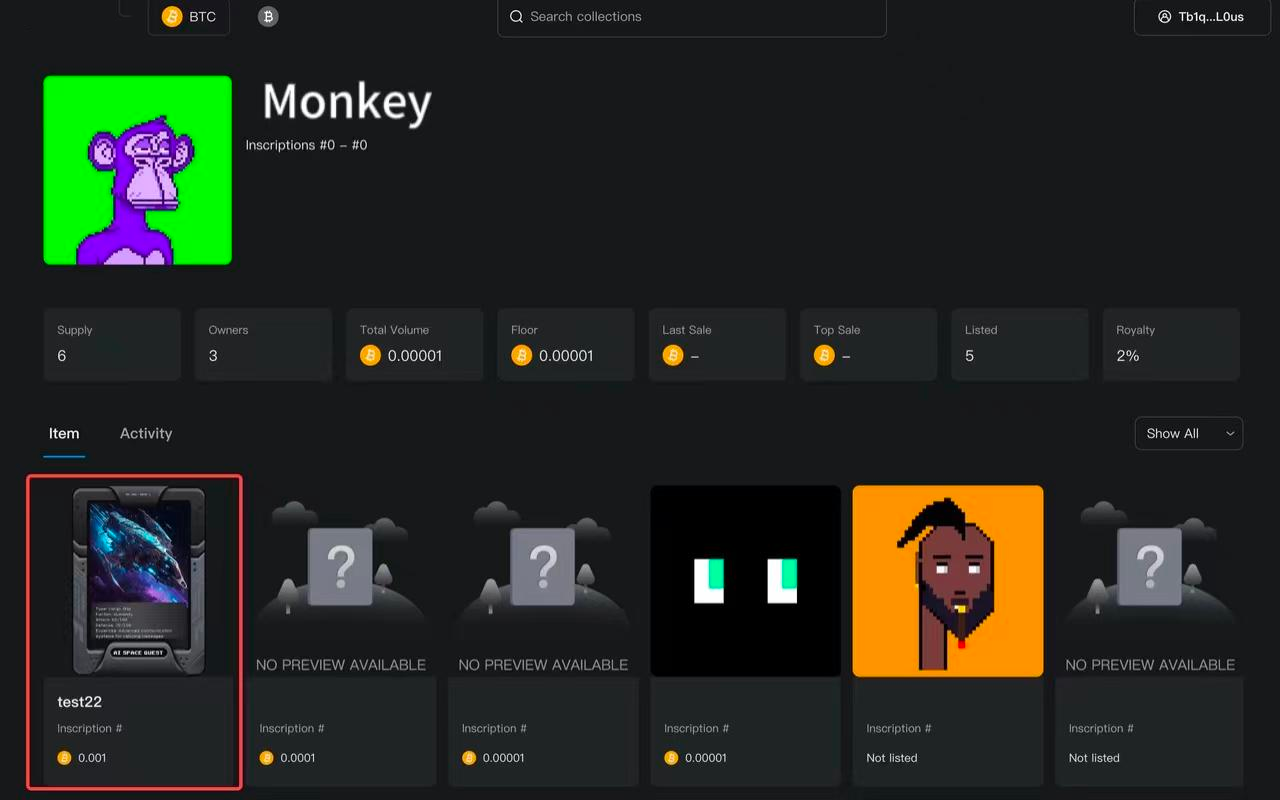
1. After your wallet is connected, you can choose and enter the *Collection Details* page of your desired inscription collection from Salvo home.
2. In the *Collection Details* page, you can choose and enter the *Item Details* page of any inscription you like.

<figure><img src="https://1290283104-files.gitbook.io/~/files/v0/b/gitbook-x-prod.appspot.com/o/spaces%2FtqhvE1g1K8RPy6RhNxn4%2Fuploads%2Fymj0Cnhrd44OEKTyKomh%2F2_11.webp?alt=media&amp;token=c6d2c542-d1df-4d98-a0f0-a9dc9a46d017" alt=""><figcaption></figcaption></figure>

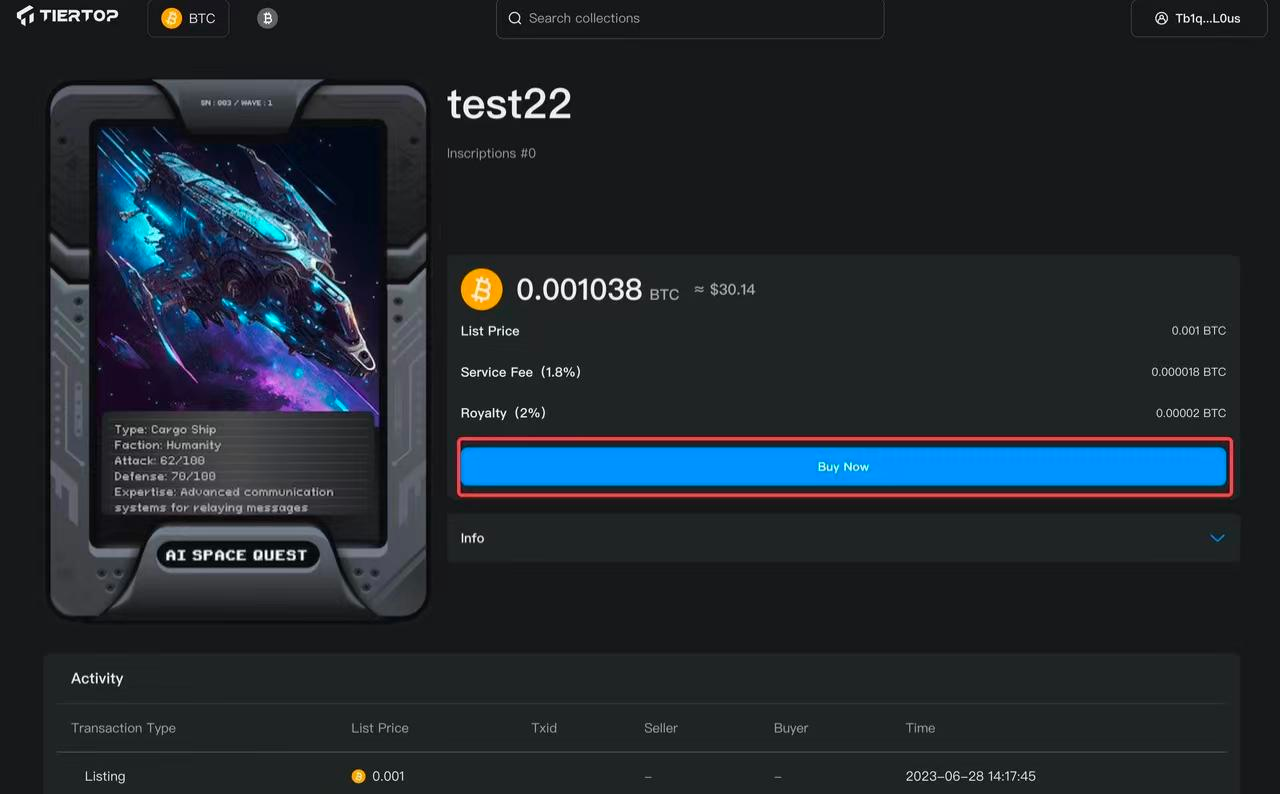
3. In the *Item Details* page, the total price (listing price + service fee + royalty) is displayed; click Buy Now to purchase this inscription.

<figure><img src="https://1290283104-files.gitbook.io/~/files/v0/b/gitbook-x-prod.appspot.com/o/spaces%2FtqhvE1g1K8RPy6RhNxn4%2Fuploads%2Fv6R56fdLISaCsNjShH6m%2F2_12.webp?alt=media&amp;token=c1689863-c2ad-45aa-b341-0f646b8f3063" alt=""><figcaption></figcaption></figure>

### Sweeping/Bulk Purchasing

1. Go to the collection details of the Ordinals you'd like to sweep/bulk purchase:
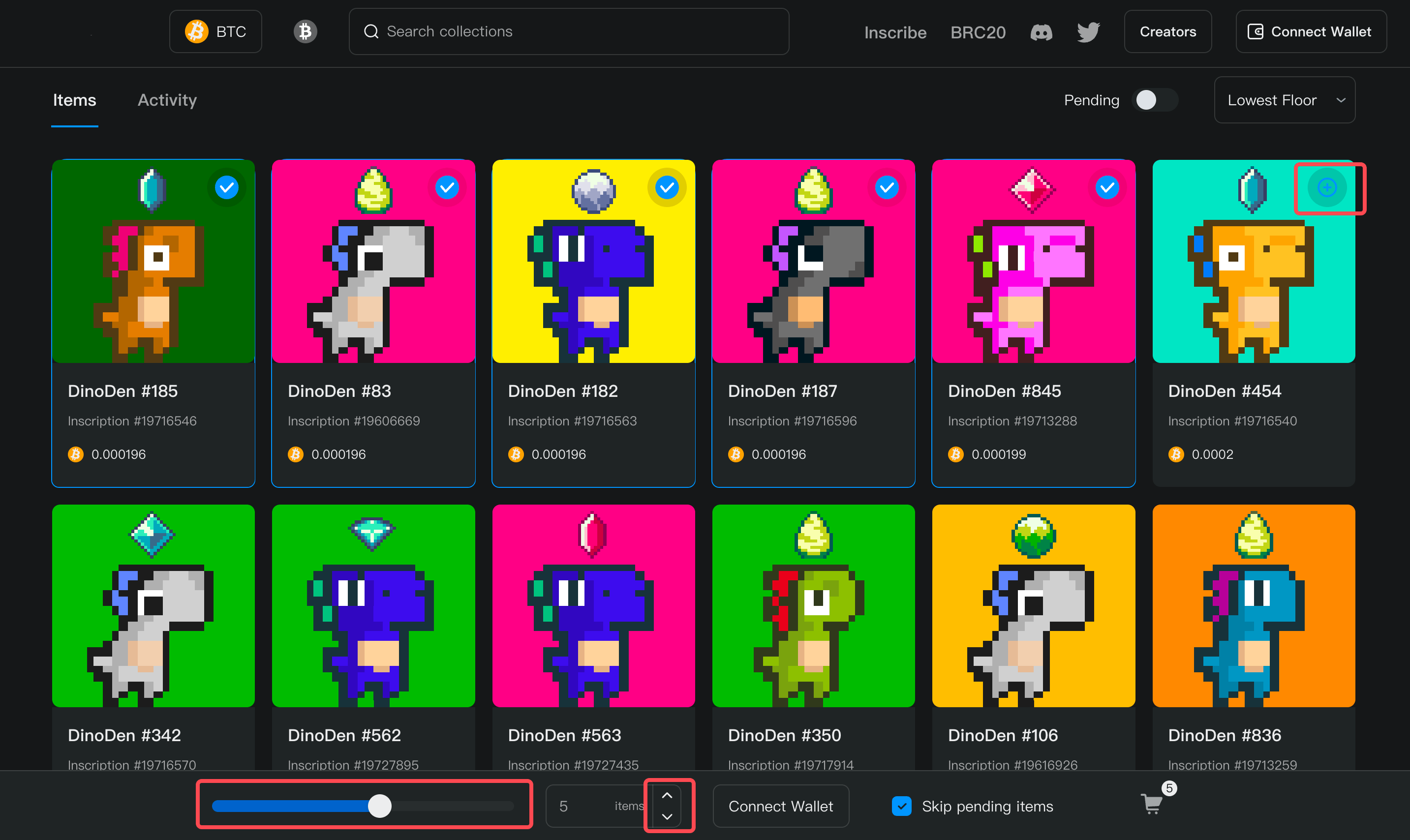
2. Select multiple Ordinals by clicking the ⊕ button, sliding the slider, or clicking on the item chaging buttons on the bottom of the page.

<figure><img src="https://1290283104-files.gitbook.io/~/files/v0/b/gitbook-x-prod.appspot.com/o/spaces%2FtqhvE1g1K8RPy6RhNxn4%2Fuploads%2F63Rv8SUffcUrgobXSZ7Y%2F2_13.png?alt=media&amp;token=b83bd020-f174-4c63-ae94-89810d21e7b2" alt=""><figcaption></figcaption></figure>

3. click on ***Connect Wallet*** to connect your wallet if you haven't.
4. Click on the total price or the shopping cart symbol to bring up the Payment menu.

<img src="https://3875926390-files.gitbook.io/~/files/v0/b/gitbook-x-prod.appspot.com/o/spaces%2FLyEQaCmk29cdobYcigo4%2Fuploads%2FJO1EmZpZs9FVJJ7CwJ5a%2Fimage.png?alt=media&#x26;token=05dc749a-d4b5-400b-90ec-cc8fa7074eb0" alt="" width="563">

5. ![](https://1290283104-files.gitbook.io/~/files/v0/b/gitbook-x-prod.appspot.com/o/spaces%2FtqhvE1g1K8RPy6RhNxn4%2Fuploads%2FoljpfSB69Aaj14mT3ofK%2F%E5%9B%BE%E7%89%87.png?alt=media\&token=0751a5df-541d-4cea-bb4b-43d6f3333e05)After confirming all the payment details, click on ***Pay*** to and sign the payment transaction in your wallet to complete the bulk purchasing.

<img src="https://3875926390-files.gitbook.io/~/files/v0/b/gitbook-x-prod.appspot.com/o/spaces%2FLyEQaCmk29cdobYcigo4%2Fuploads%2Fwj2StRhmhYNUTcFSodbc%2Fimage.png?alt=media&#x26;token=1ab3bd30-5e8b-4396-9e74-e69e5b1a1d98" alt="" width="179">